ZUSMPP Manual – Firewall Section
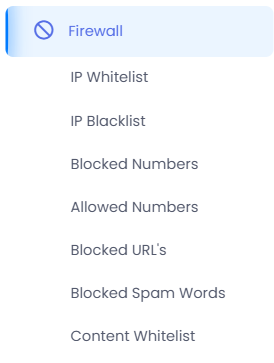
The Firewall section manages security and access control rules for the SMS platform. It includes filters for IPs, numbers, URLs, and content to prevent abuse and ensure secure message routing.
IP Whitelist Submenu
Location: Sidebar → Firewall → IP Whitelist
Allows only specified IP addresses or domains to connect to the platform.
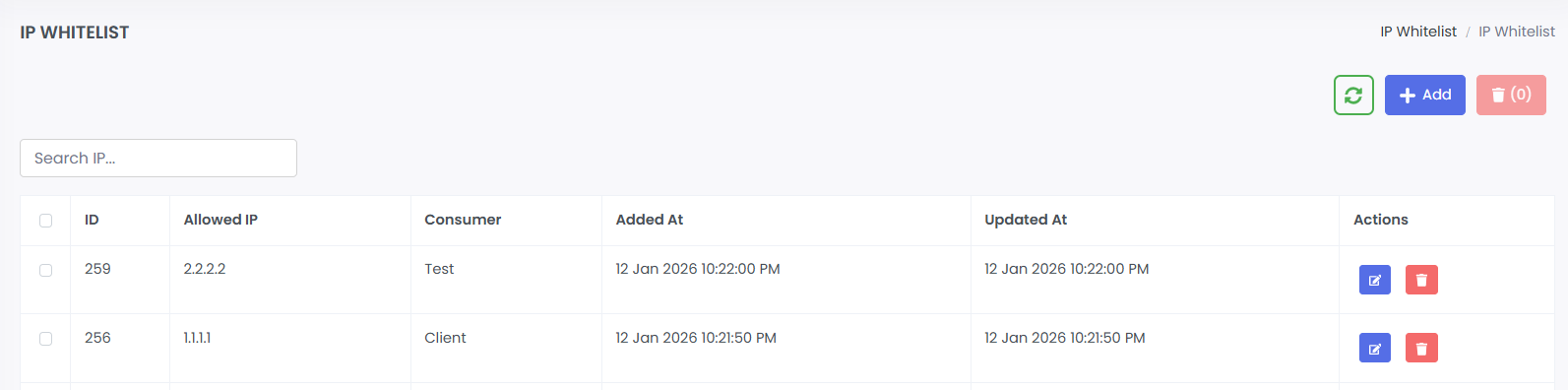
1. IP Whitelist List
· Table of allowed IPs/domains.
· Columns: ID, Allowed IP, Consumer, Added At, Updated At, Actions.
· Search bar for filtering entries.
· Actions: Edit, Delete.
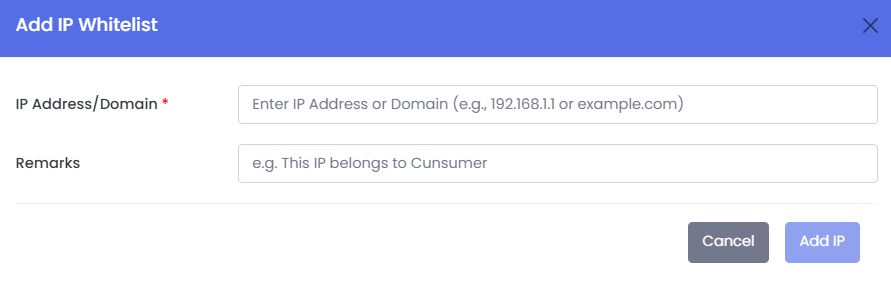
2. Add IP Whitelist
· Form to add a new trusted IP or domain.
· Fields:
→ IP Address/Domain (e.g., 192.168.1.1 or example.com)
→ Remarks (optional note)
3. Edit IP Whitelist
· Pre-filled form to update an existing whitelist entry.
4. Delete IP Whitelist
· Removes the IP/domain from the whitelist after confirmation.
ZUSMPP Manual – IP Blacklist
Location: Sidebar → Firewall → IP Blacklist
Blocks specified IP addresses or domains from accessing the platform.
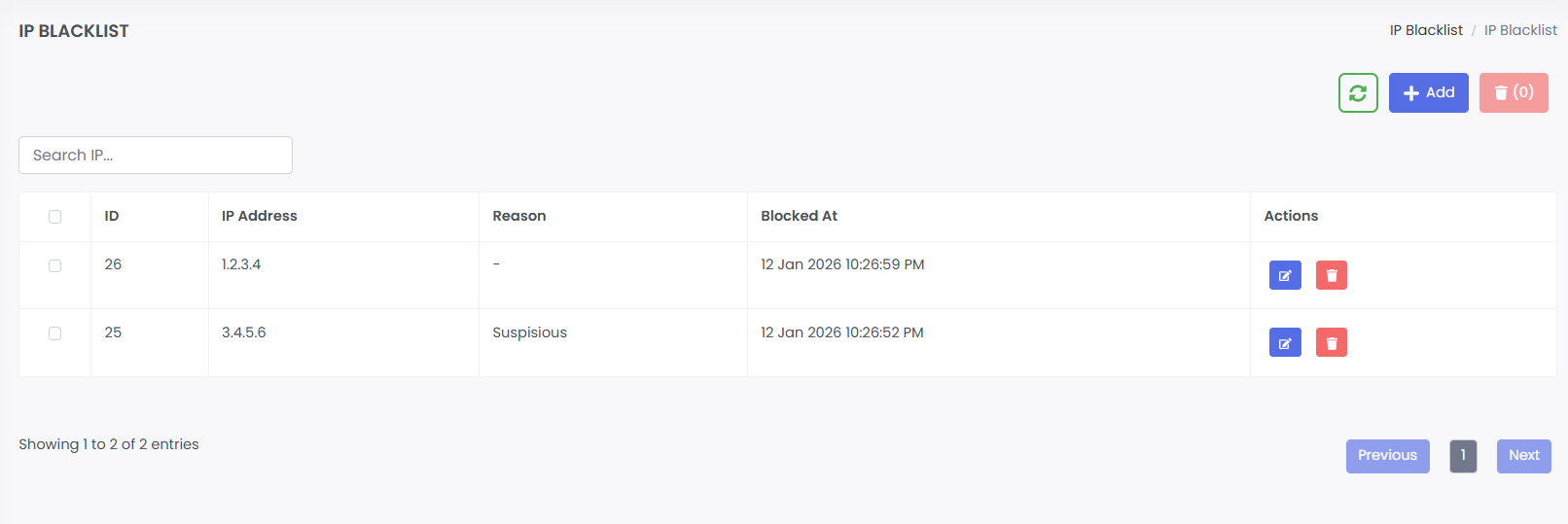
1. IP Blacklist List
· Table of blocked IPs/domains.
· Columns: ID, IP Address, Reason, Blocked At, Actions.
· Search bar for filtering entries.
· Actions: Edit, Delete.
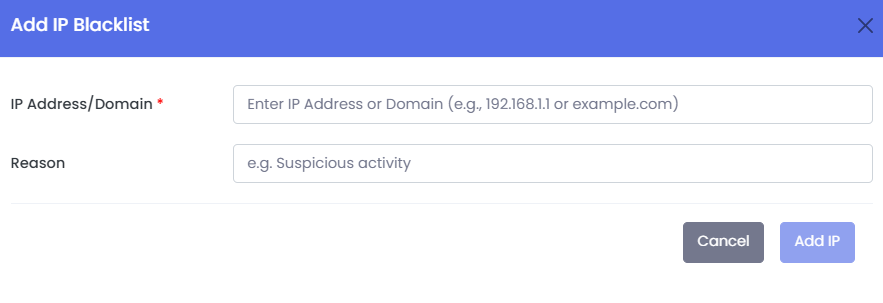
2. Add IP Blacklist
· Form to block a new IP or domain.
· Fields:
→ IP Address/Domain (e.g., 192.168.1.1 or example.com)
→ Reason (optional note for blocking)
3. Edit IP Blacklist
· Pre-filled form to update an existing blacklist entry (e.g., modify reason).
4. Delete IP Blacklist
· Removes the IP/domain from the blacklist after confirmation.
ZUSMPP Manual – Blocked Numbers
Location: Sidebar → Firewall → Blocked Numbers
Manages permanently or temporarily blocked phone numbers to prevent spam/abuse.
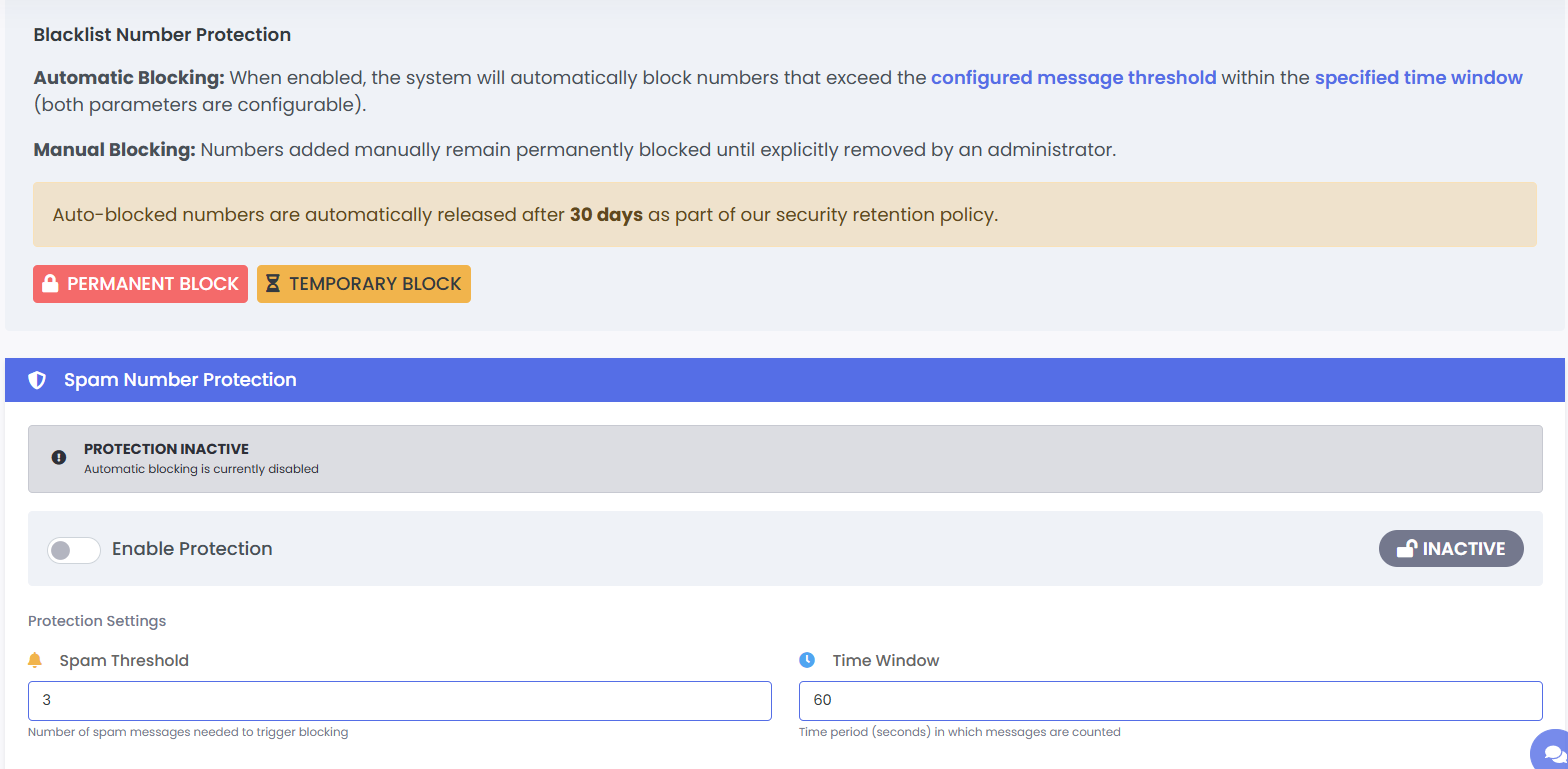
1. Protection Settings
· Spam Threshold: Number of messages allowed before auto-block (e.g., 3).
· Time Window: Time period (in seconds) for counting messages (e.g., 60).
· Block Type: Toggle between Permanent Block and Temporary Block (auto-released after 30 days).
· Enable Protection: Activate/deactivate automatic spam blocking.
2. Blocked Numbers List
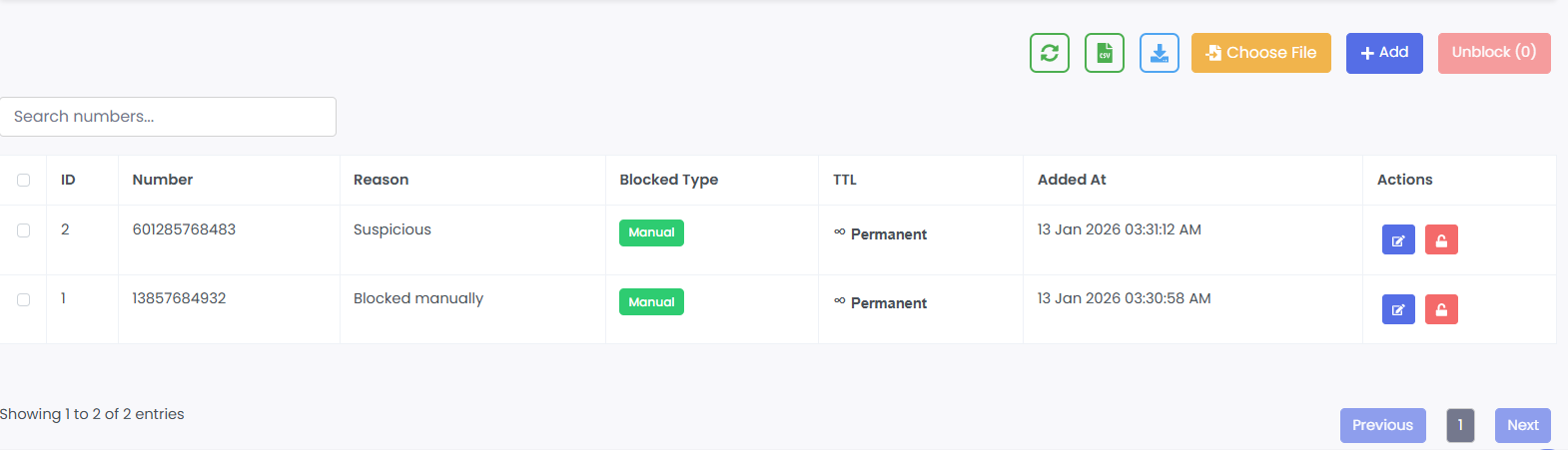
· Table shows all blocked numbers.
· Columns: ID, Number, Reason, Blocked Type, TTL, Added At, Actions.
· Actions: Edit, Delete, Export list.
3. Add Blocked Number
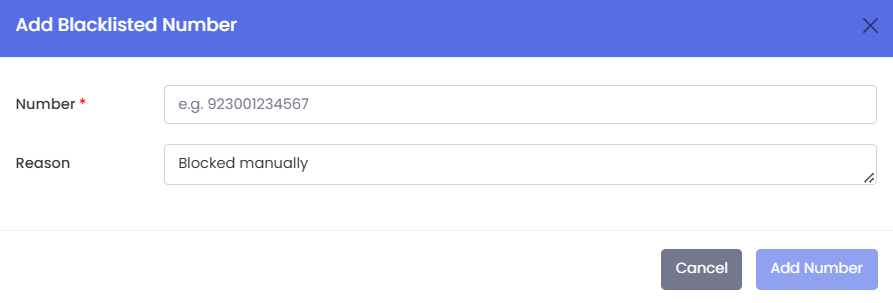
· Manual Entry: Add single number with optional reason.
· Fields:
→ Number (e.g., +971 4 347 2908)
→ Reason (e.g., “Suspicious activity”)
· Import: Bulk upload numbers via file (CSV/Excel).
· Search bar for finding specific numbers.
4. Edit/Delete Blocked Number
· Edit: Update reason or block type.
· Delete: Remove number from blocklist.
ZUSMPP Manual – Allowed Numbers
Location: Sidebar → Firewall → Allowed Numbers
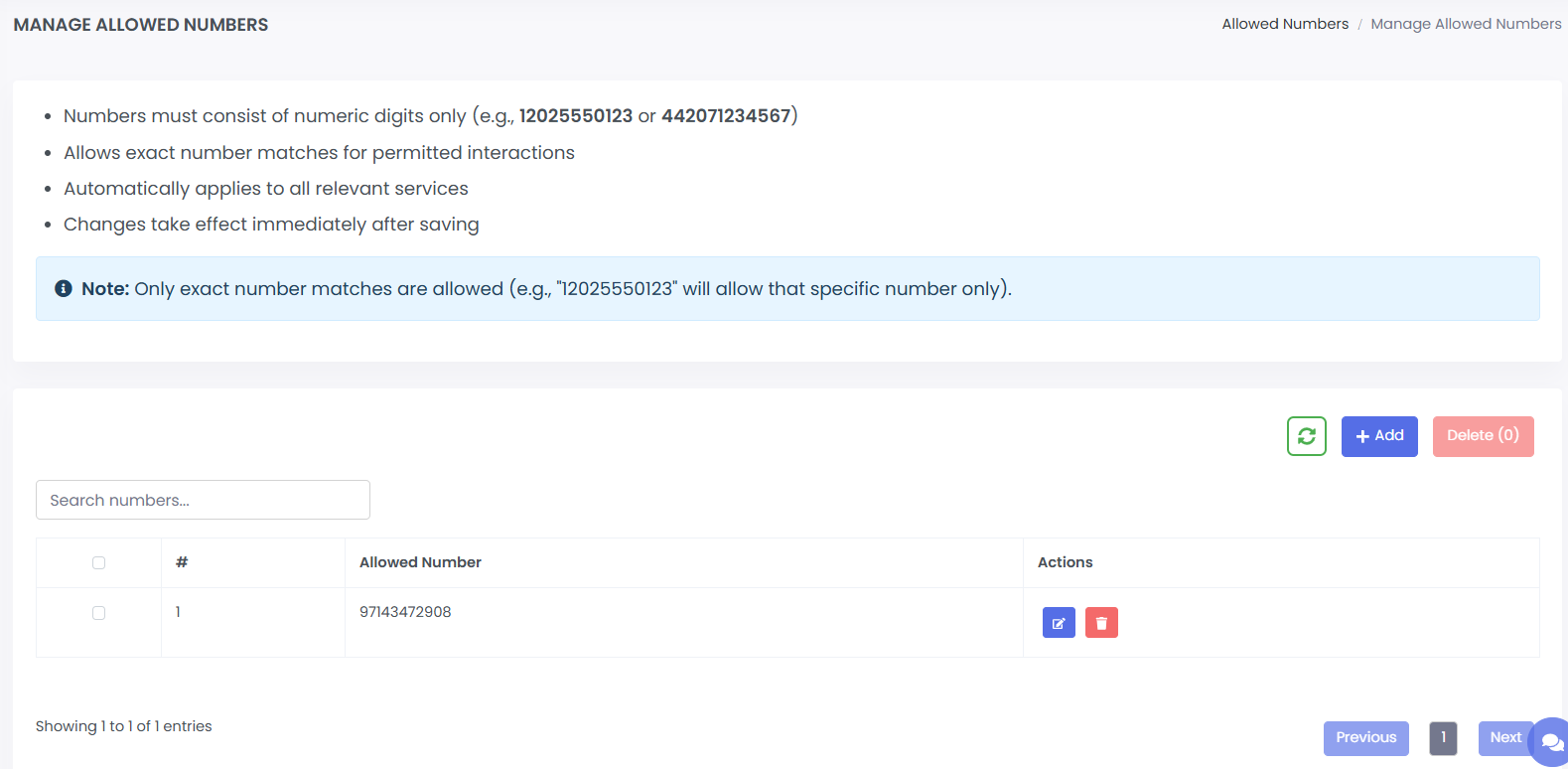
Manages a whitelist of phone numbers that are permitted to interact with the platform. Only exact number matches are allowed.
1. Allowed Numbers List
· Table displays all whitelisted numbers.
· Columns: Allowed Number, Actions.
· Search bar for filtering numbers.
· Bulk actions: Delete selected.
· Add button to add new numbers.
2. Add Allowed Number
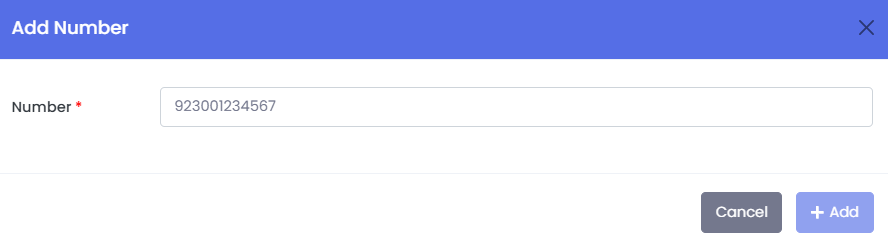
· Form to add a single allowed number.
· Field: Number (numeric digits only, e.g., 97143472908).
· Changes take effect immediately.
3. Edit Allowed Number
· Pre-filled form to update an existing allowed number (same as Add form).
4. Delete Allowed Number
· Remove number from whitelist (single or bulk deletion).
ZUSMPP Manual – Blocked URLs
Location: Sidebar → Firewall → Blocked URLs
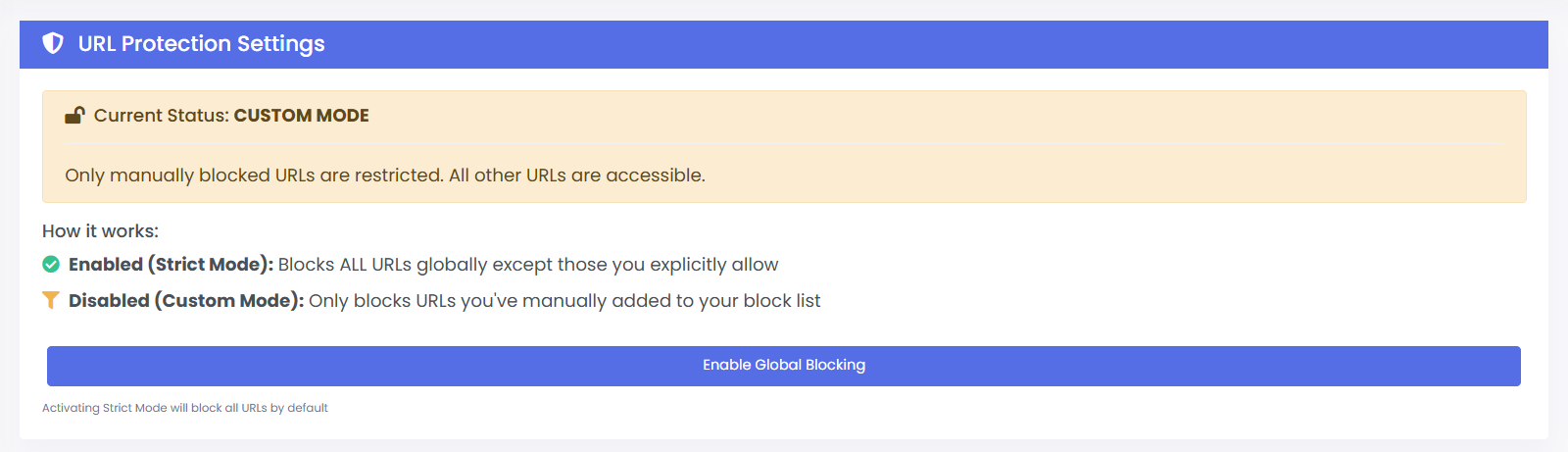
Manages a list of URLs blocked in SMS messages. Operates in two modes:
Custom Mode (blocks only manually listed URLs) or Strict Mode (blocks all URLs except allowed ones).
1. URL Protection Settings
· Custom Mode: Blocks only URLs added manually to the list.
· Strict Mode: Blocks all URLs globally except those explicitly allowed.
· Toggle to switch between modes.
2. Blocked URLs List
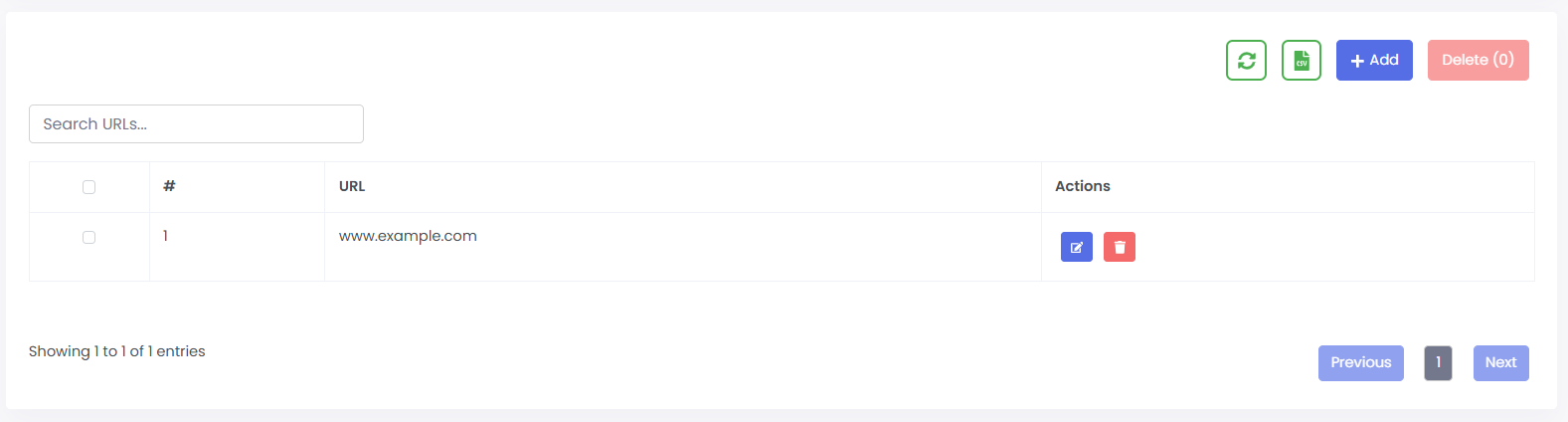
· Table of manually blocked URLs.
· Columns: #, URL, Actions.
· Search bar to filter entries.
· Actions: Edit, Delete.
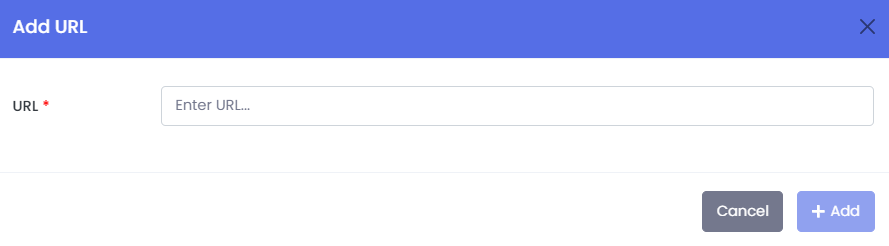
3. Add Blocked URL
· Form to add a new URL to the block list.
· Field: URL (e.g., www.example.com)
4. Edit Blocked URL
· Pre-filled form to update an existing blocked URL.
5. Delete Blocked URL
· Remove URL from the block list.
ZUSMPP Manual – Blocked Spam Words
Location: Sidebar → Firewall → Blocked Spam Words
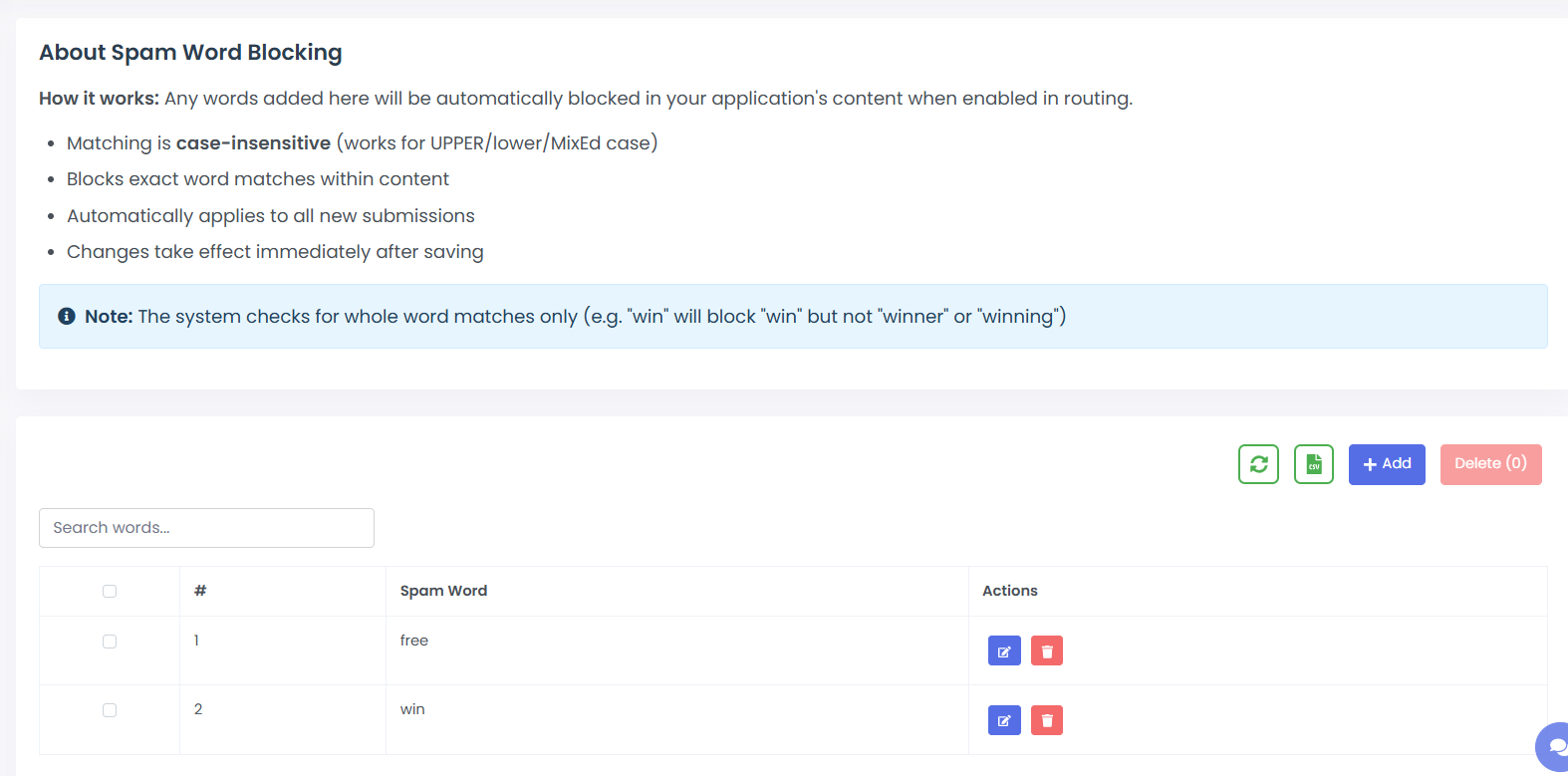
Manages a list of words that are blocked in SMS content. Matching is case-insensitive and applies to whole words only.
1. Blocked Spam Words List
· Table displays all blocked spam words.
· Columns: Spam Word, Actions.
· Search bar for filtering words.
· Actions: Edit, Delete.
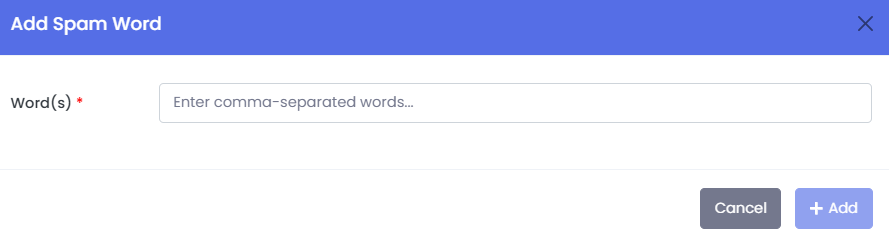
2. Add Spam Word
· Form to add new spam words.
· Field: Word(s) (enter comma-separated words, e.g., win, prize, free)
3. Edit Blocked Spam Word
· Pre-filled form to update an existing spam word.
4. Delete Blocked Spam Word
· Remove word from the block list.
ZUSMPP Manual – Content Whitelist
Location: Sidebar → Firewall → Content Whitelist
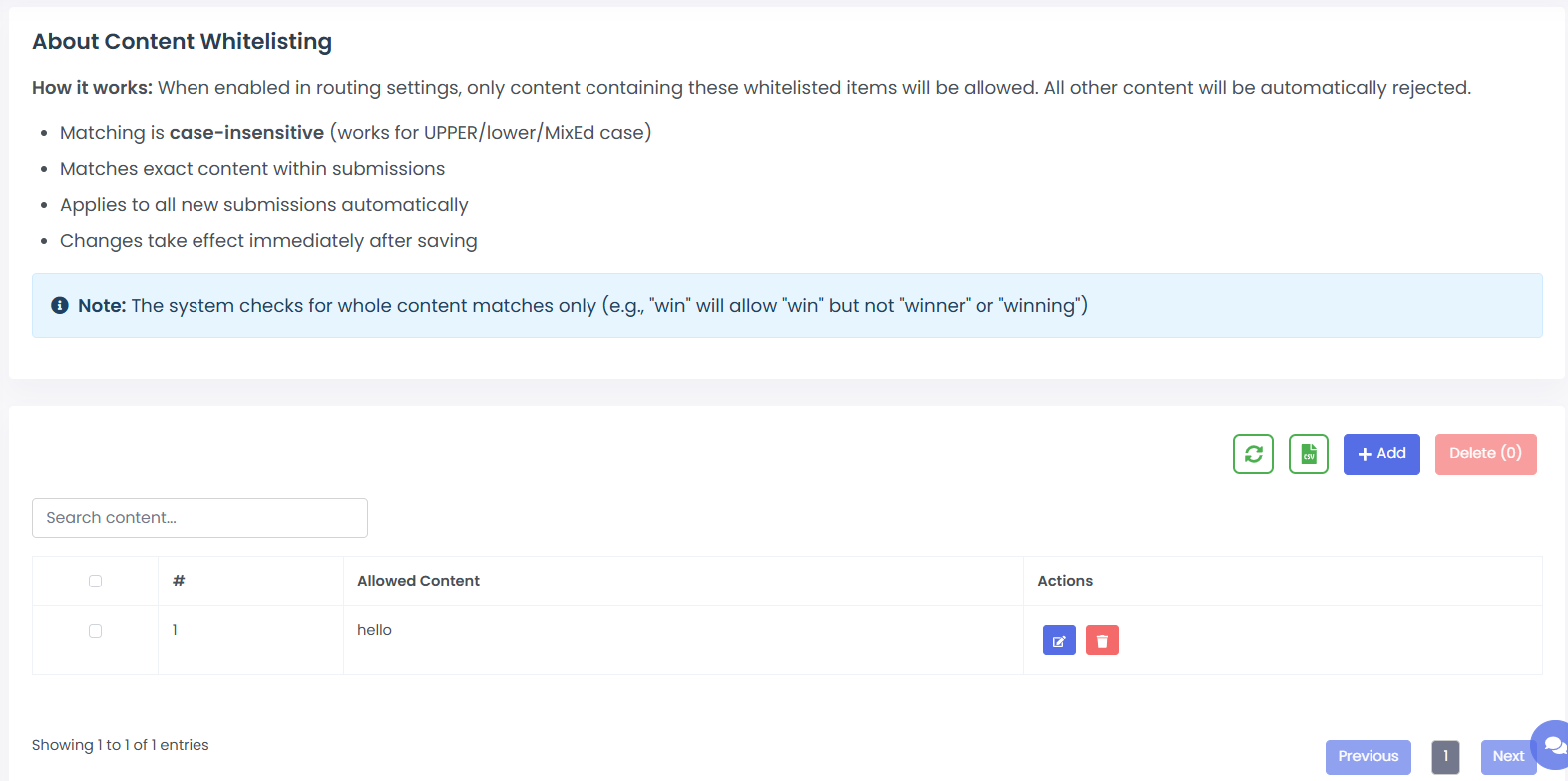
Manages a list of allowed content for SMS messages. When enabled in routing settings, only content containing these whitelisted items is permitted; all other content is rejected.
1. Content Whitelist List
· Table displays all allowed content entries.
· Columns: #, Allowed Content, Actions.
· Search bar for filtering entries.
· Actions: Edit, Delete.
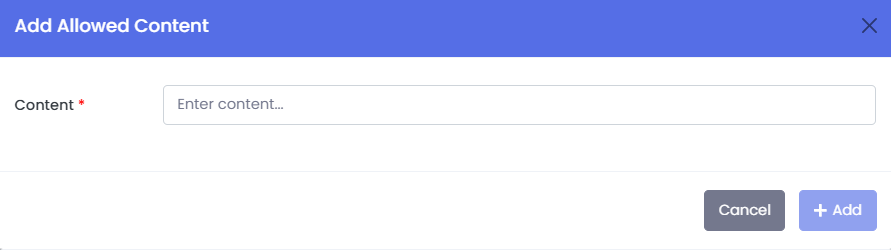
2. Add Allowed Content
· Form to add new allowed content.
· Field: Content (enter exact text or phrase to whitelist)
3. Edit Allowed Content
· Pre-filled form to update an existing whitelisted entry.
4. Delete Allowed Content
· Remove content from the whitelist.